Part 1 pulled a skeleton out of a webcam. Part 2 gives that skeleton someone to drive: a real 3D VRM avatar, loaded and breathing in the browser with three.js and @pixiv/three-vrm. This post walks through the whole thing — why VRM matters, the three.js scene, the loading cleanup that matters on a 15 MB model, two-line breathing, and the expression system that will carry face tracking later. Full code is on GitHub.
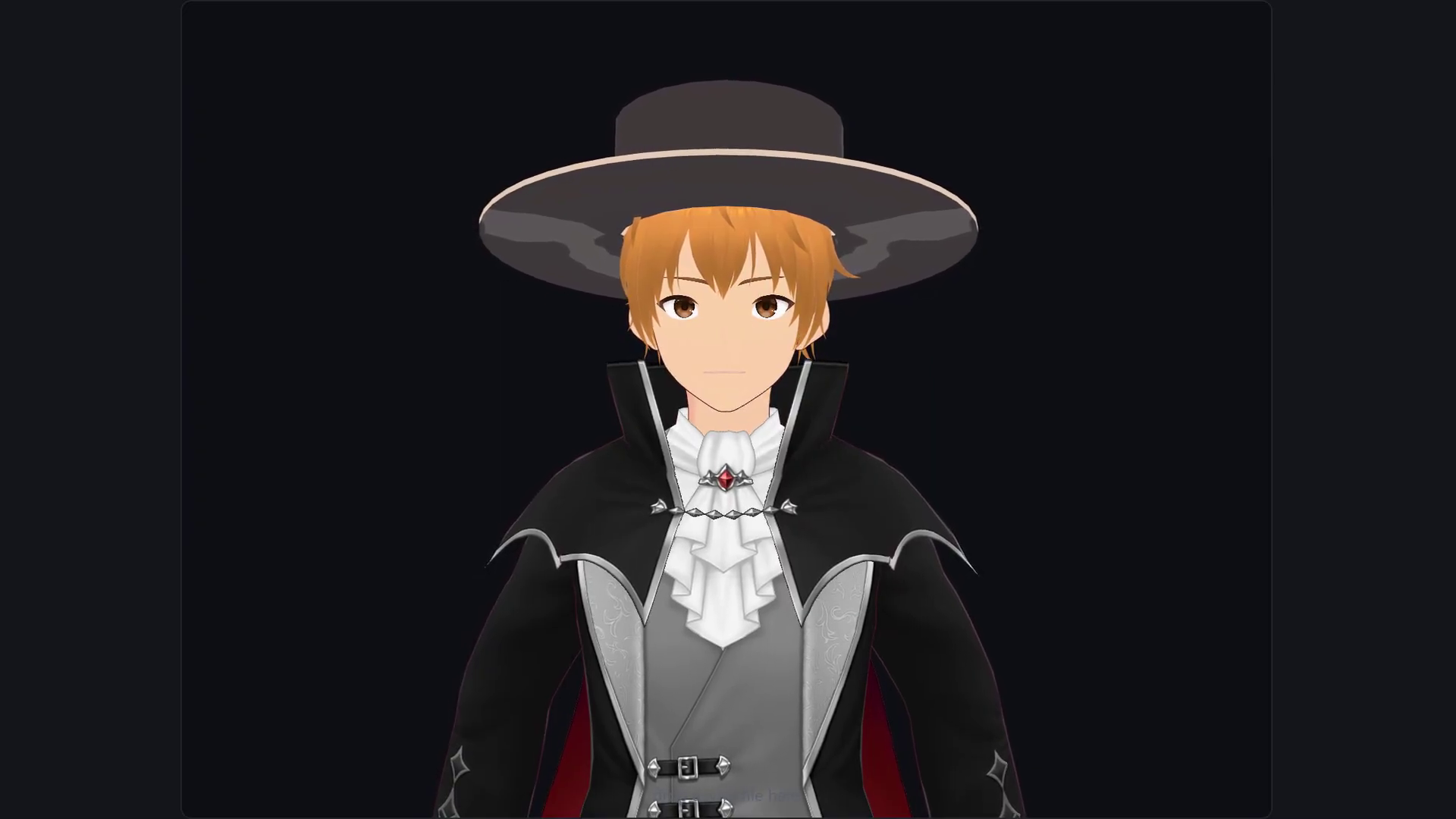
Table of Contents
Why VRM — the standardized bone map
The avatar format is VRM. It is a glTF extension with one crucial addition: a standardized humanoid bone map. Every VRM names its bones the same way — “left upper arm” is always left upper arm. That single guarantee is why the retargeting code in the next episode will work with any avatar, not just this one. Build against the standard bone names once, and every VRM your users drop in just works.
The three.js scene: camera, controls, lights
The scene is ordinary three.js: a renderer, a camera framed close on the upper body (a VTuber app is mostly a portrait — that is all we track), OrbitControls, and two lights. One detail worth calling out: preserveDrawingBuffer: true keeps the rendered frame readable after drawing, so the canvas can be screenshotted or recorded later.
this.renderer = new THREE.WebGLRenderer({
  canvas,
  antialias: true,
  alpha: true,
  preserveDrawingBuffer: true, // keep frames recordable / screenshottable
});

// Framed on the upper body, since that is all we track.
this.camera = new THREE.PerspectiveCamera(30, 1, 0.1, 20);
this.camera.position.set(0, 1.3, 2.2);

this.controls = new OrbitControls(this.camera, canvas);
this.controls.target.set(0, 1.25, 0);
this.controls.enablePan = false;

const key = new THREE.DirectionalLight(0xffffff, 2);
key.position.set(1, 2, 2);
this.scene.add(key);
this.scene.add(new THREE.AmbientLight(0xffffff, 1.2));
Loading with three-vrm (and the cleanup that matters)
This is where @pixiv/three-vrm earns its keep. You register the VRM plugin into the standard GLTFLoader, and the parsed avatar arrives on gltf.userData.vrm. Then three cleanup calls — and on a ~15 MB model the last one genuinely matters: rotate VRM 0.x models so every avatar faces the camera, drop unused vertices, and combine skeletons.
this.loader = new GLTFLoader();
this.loader.register((parser) => new VRMLoaderPlugin(parser));

// …later, in load():
const gltf = await this.loader.loadAsync(url);
const vrm = gltf.userData.vrm as VRM;

VRMUtils.rotateVRM0(vrm);                    // VRM 0.x faces +Z — normalize it
VRMUtils.removeUnnecessaryVertices(vrm.scene); // frees GPU memory
VRMUtils.combineSkeletons(vrm.scene);        // matters on a 15 MB model

this.vrm = vrm;
this.scene.add(vrm.scene);
Breathing in two lines
A motionless avatar looks broken. So before any tracking exists, we add breathing — a slow sine wave into the chest bone, and a smaller one in the spine. Two lines, and the model reads as alive. Because we go through the humanoid’s normalized bone nodes, this works on any VRM regardless of how its rig was authored.
const breath = Math.sin(this.elapsed * 1.6);
const chest = humanoid.getNormalizedBoneNode("chest");
if (chest) chest.rotation.x = breath * 0.02;              // breathing rise
const spine = humanoid.getNormalizedBoneNode("spine");
if (spine) spine.rotation.y = Math.sin(this.elapsed * 0.5) * 0.04; // sway
VRM expressions (setup for later)
VRM also standardizes expressions: blink, happy, angry, sad, relaxed, and the vowel shapes for lip sync. Rather than assume a fixed set, we ask the loaded avatar which ones it has and build a button for each. This is the exact system that will carry face tracking later in the series.
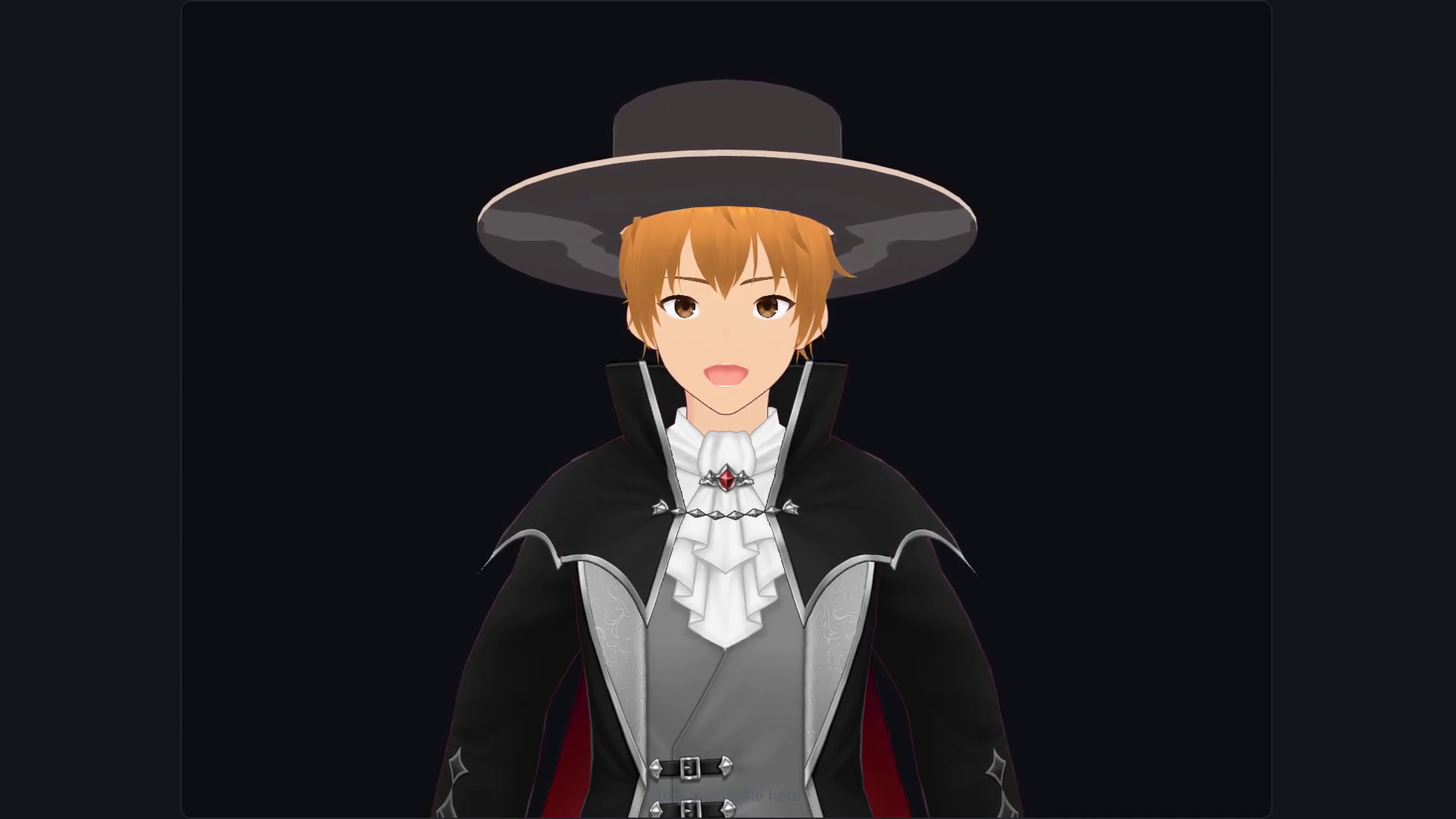
// Ask the avatar what it supports, then build a button per expression.
const EXPRESSION_PRESETS = ["blink", "happy", "angry", "sad", "relaxed", "aa"];
const available = viewer.expressionNames; // from vrm.expressionManager

for (const name of EXPRESSION_PRESETS) {
  if (!available.includes(name)) continue;
  const btn = document.createElement("button");
  btn.textContent = name;
  btn.addEventListener("pointerdown", () => viewer.setExpression(name, 1));
  btn.addEventListener("pointerup",   () => viewer.setExpression(name, 0));
  expressionsEl.appendChild(btn);
}
Any VRM works — drag and drop
Because the bone map is standardized, any VRM works. Drag and drop a .vrm file onto the pane and it loads — your avatar, the same code. That is the payoff of building against the standard rather than one specific model.
dropZone.addEventListener("drop", (e) => {
  e.preventDefault();
  const file = e.dataTransfer?.files[0];
  if (file?.name.toLowerCase().endsWith(".vrm")) loadAvatar(file);
});
Frequently asked questions
What is a VRM file, and why use it for avatars?
VRM is a glTF-based 3D avatar format with a standardized humanoid bone map and a standardized expression set. Because bones and expressions are named consistently across every model, code written against the standard works with any VRM — which is what makes “bring your own avatar” possible.
How do you load a VRM in three.js?
Register @pixiv/three-vrm‘s VRMLoaderPlugin into the standard three.js GLTFLoader, load the file, and read the parsed avatar from gltf.userData.vrm. Then run the VRMUtils cleanup calls (rotate, remove unused vertices, combine skeletons) before adding it to the scene.
Why does a static avatar look broken?
Because humans are never perfectly still. A completely motionless 3D model reads as frozen or dead. Adding a subtle idle animation — a slow breathing rise in the chest and a small sway in the spine — is enough to make it feel alive, even before any real tracking drives it.
What’s next — Part 3
The avatar and the skeleton are both on screen now — a real avatar, breathing and emoting, next to a real skeleton — but they are not connected yet. Connecting them is the hard part, and that is the whole of Part 3: retargeting the webcam landmarks onto the avatar’s bone rotations. The full code is on GitHub (Part 2 tagged v2-avatar). If you missed it, start with Part 1: browser motion capture with MediaPipe.
Takashi Fukushima — Sports Science & Pose Estimation.
▶ Subscribe on YouTube · GitHub · Website · Contact